1. Prepare your two wallets
Your vault is the account that holds the assets. Your delegate is a different wallet you control and use day to day. Copy the delegate’s public Solana address from its Receive screen. Keep both wallets’ recovery phrases private.
For a live test, select Solana devnet in your wallet and put a little devnet SOL in the vault for the network fee and registry deposits. My Links shows both costs before you sign. The delegate can sign a website login message with a zero balance. Solana devnet faucet · Other faucets
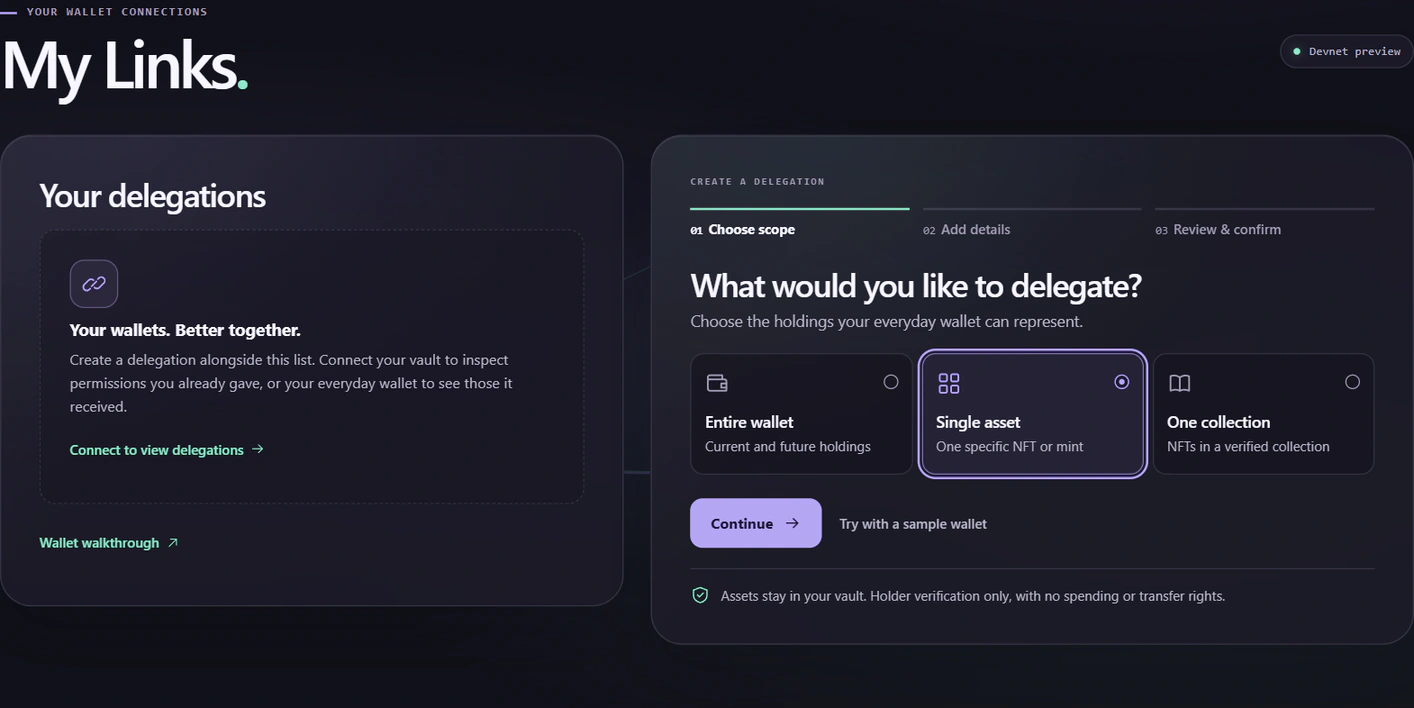
Practicing first? Choose a scope and select Try with a sample wallet. On the next screen, use the sample address button. The screenshots below show this browser-only practice flow.
2. Choose what the delegate can represent
In My Links, select Create delegation and choose the smallest scope that covers what you want to do.
- Entire wallet
- Lets an integrated app verify eligible current and future holdings from this vault. Choose this for a general wallet link.
- Single asset
- Applies to one NFT or token mint. Use the mint address from the asset’s details. The token account that stores your balance has a different address.
- One collection
- Applies to eligible NFTs in one verified Metaplex collection. Use the collection mint. The website checks current membership and ownership when you ask for access.
Select Continue, choose your wallet provider and connect the vault account.
3. Set the delegate, audience and expiry
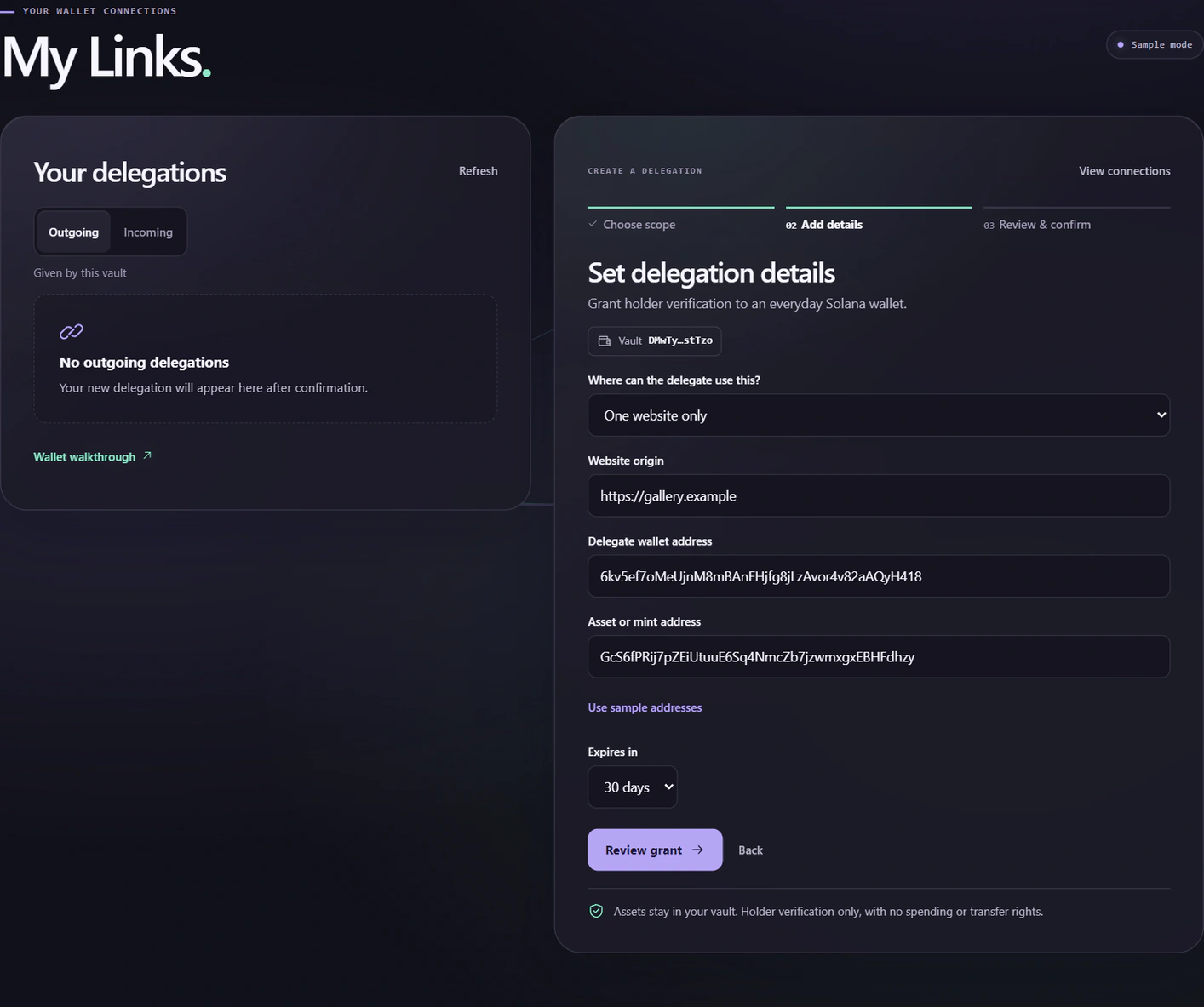
- Check the vault shown under Set delegation details.
- Choose All apps that integrate Solbound to reuse the grant, or One website only and enter its exact HTTPS origin, such as
https://gallery.example. Subdomains count as separate origins. Leave off the page path. - Paste the everyday wallet’s public address. For asset or collection scope, also paste the appropriate mint address.
- Choose 1 day, 7 days or 30 days. Select Review grant.
4. Review and sign from the vault
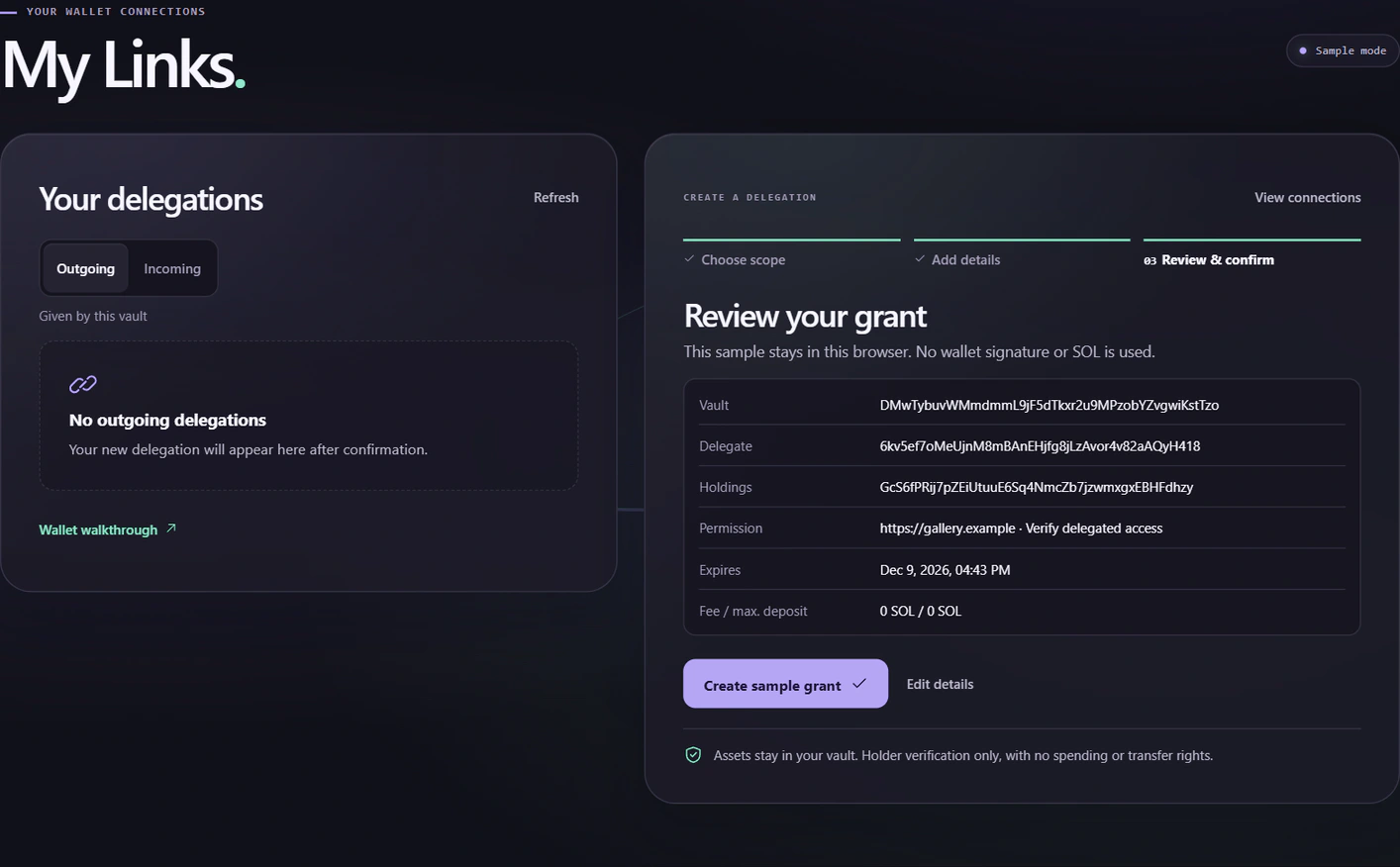
Compare the full vault and delegate addresses, holdings, allowed apps and expiry. For a devnet grant, also check the network fee, maximum deposit and registry address against the deployment reference. The grant publicly links both wallets.
Select Sign devnet grant and inspect your wallet’s prompt. Cancel a blind-sign request or an unexpected token transfer. Wait for Delegation confirmed and use View transaction to see the finalized receipt. In practice mode the button reads Create sample grant.
5. Sign in with the everyday wallet
Visit a website that has enabled Solbound. Switch to the delegate, connect it there and sign its one-time sign-in message. Check the domain and wallet address in the message. The site checks your grant and any holdings required for its feature.
An all-apps grant is reusable across participating sites. Each website owner must first integrate the verifier. A grant by itself cannot turn on access at a website. If a site requires a specific NFT, the vault must still own a qualifying NFT.
6. Inspect, renew or revoke a grant
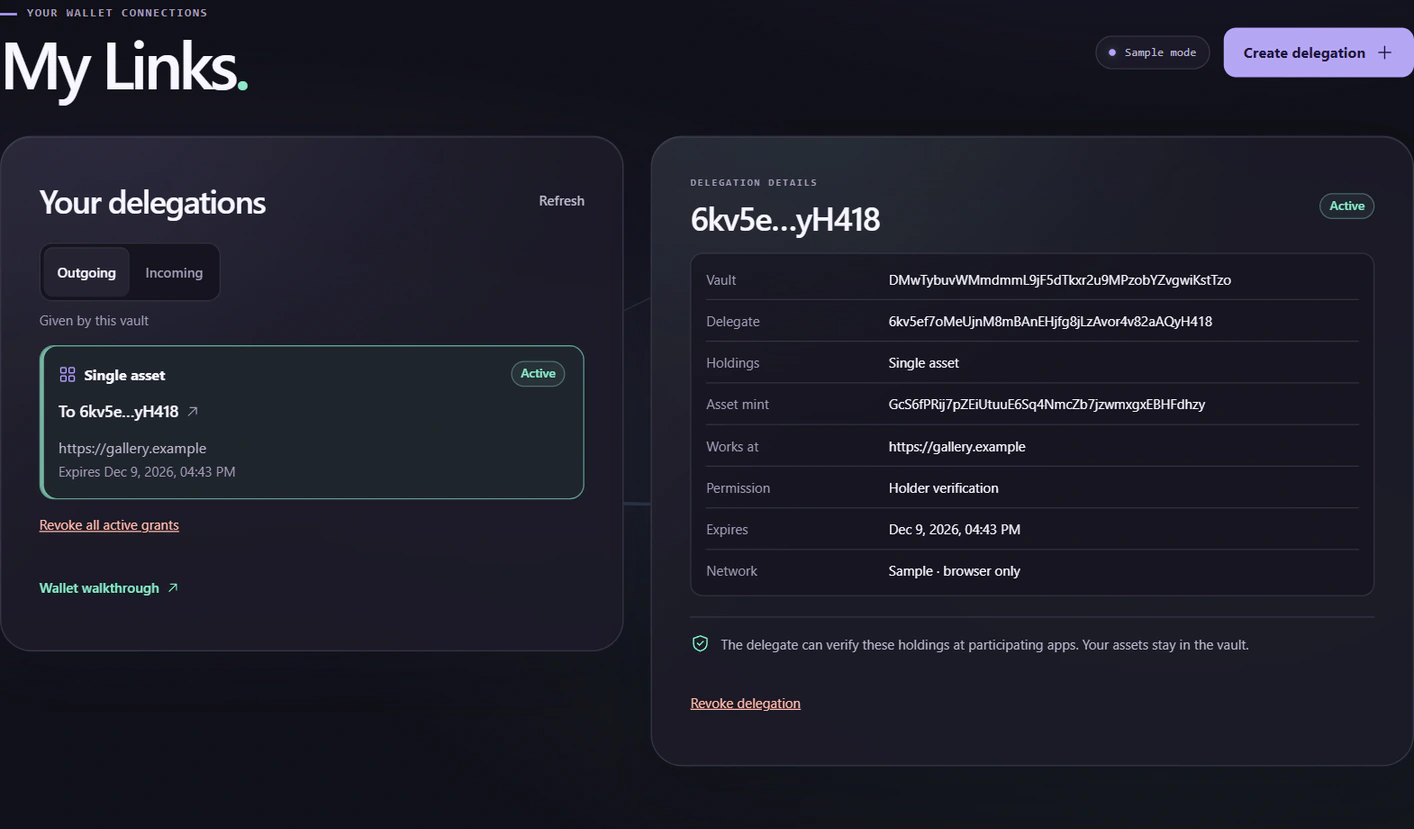
Open My Links. Connect the vault and choose Outgoing for grants you issued, or connect the everyday wallet and choose Incoming for grants it received. Select a grant in Your delegations to see its full addresses, scope, allowed apps and expiry.
- Renew. Select Create delegation and create a grant with the same vault, delegate, scope, asset and audience. Signing updates that grant’s expiry. Choosing a different scope or audience creates a separate grant that may overlap.
- Revoke one. Select an active outgoing grant, choose Revoke delegation in its details, then confirm and sign with the vault. On devnet this closes the record and refunds its grant deposit. Other matching grants can still allow access.
- Revoke all active grants. This invalidates earlier grants from this vault together, including grants to other delegates. Their record deposits stay on-chain until individually closed. The vault state persists.
- Expired grant. Verification ends at the stored expiry. A record or its history can remain visible. The recovery instructions cover closing remaining records.
When something looks wrong
- The simulation failed
- Check that the connected vault has devnet SOL for both the fee and record deposits. Verify your addresses and expiry, then request a fresh review.
- The wallet changed the transaction or the review expired
- Return to details and review again with the same vault on devnet. If a transaction signature was already shown, check it in Solana Explorer on devnet before retrying.
- The grant is active, but a site denies access
- Confirm the site supports Solbound on devnet. Sign in with the delegate, check the site’s exact origin, and confirm the vault still meets the site’s asset rule. When automatic discovery misses a holding, use the site’s specific-vault lookup.
- I lost my delegate or vault
- If you control the vault, revoke the affected grants and grant access to a new delegate. Only the vault can change its grants. If you lose the vault signing key, existing grants reach their recorded expiry.